How to Run an MT5 EA on a Prop Firm Account
Learn how to run your own automated trading strategy on a prop firm account using Profectus AI and MetaTrader 5.
How to Run an MT5 EA on a Prop Firm Account
You have built your first strategy in Profectus, and the backtest results show great potential. Now you might want to move forward and forward-test this strategy on a demo account. Or, you might want to dip your toes in the water and test your own creation on a prop firm demo account. But the real question now is: how do you actually deploy your strategy on a prop firm account in MT5 to make it trade automatically?
Luckily, you can take a strategy from Profectus AI and have it running inside MetaTrader 5 in just a few steps. I’ll walk you through the process from exporting your strategy from Profectus AI, backtesting it, and running it even when your computer is turned off.
For a visual guide, you can also watch the full YouTube Tutorial here.
What Do You Need to Run an Automated Trading Strategy?
Before we get started, there are three things you need:
-A trading account (demo, live, or prop firm)
-Metatrader 5
-Your automated strategy (we also call this your EA)
Your trading account can be a normal broker account, a demo account, or a prop firm account. The setup is largely the same, provided your broker or prop firm supports MetaTrader 5 and allows automated trading. In all cases, you receive login credentials that connect MetaTrader to your trading account.
The second requirement is MetaTrader 5 (MT5), one of the most popular trading platforms for automated trading. MetaTrader 5 is the engine that will host your trading account & trading strategy. It’s free to use, and you can download it directly from your broker or prop firm client portal.
Lastly, you need your EA. When you finish building and backtesting your EA in Profectus AI, you simply click the “Download” button, and you will receive the .EX5 file in your Downloads folder. The .EX5 format is the executable file for MetaTrader 5.
Now we can get started!
Step 1: Building and Backtesting in Profectus AI
The first thing we need is a trading strategy that we actually want to run.
In the video, I'm using an automated momentum strategy on USD/JPY. This strategy has already been backtested on approximately 800 historical trades inside Profectus AI. That gives us a reasonable amount of data to start understanding how the strategy behaves, including its winning trades, losing trades, drawdown, and overall performance.
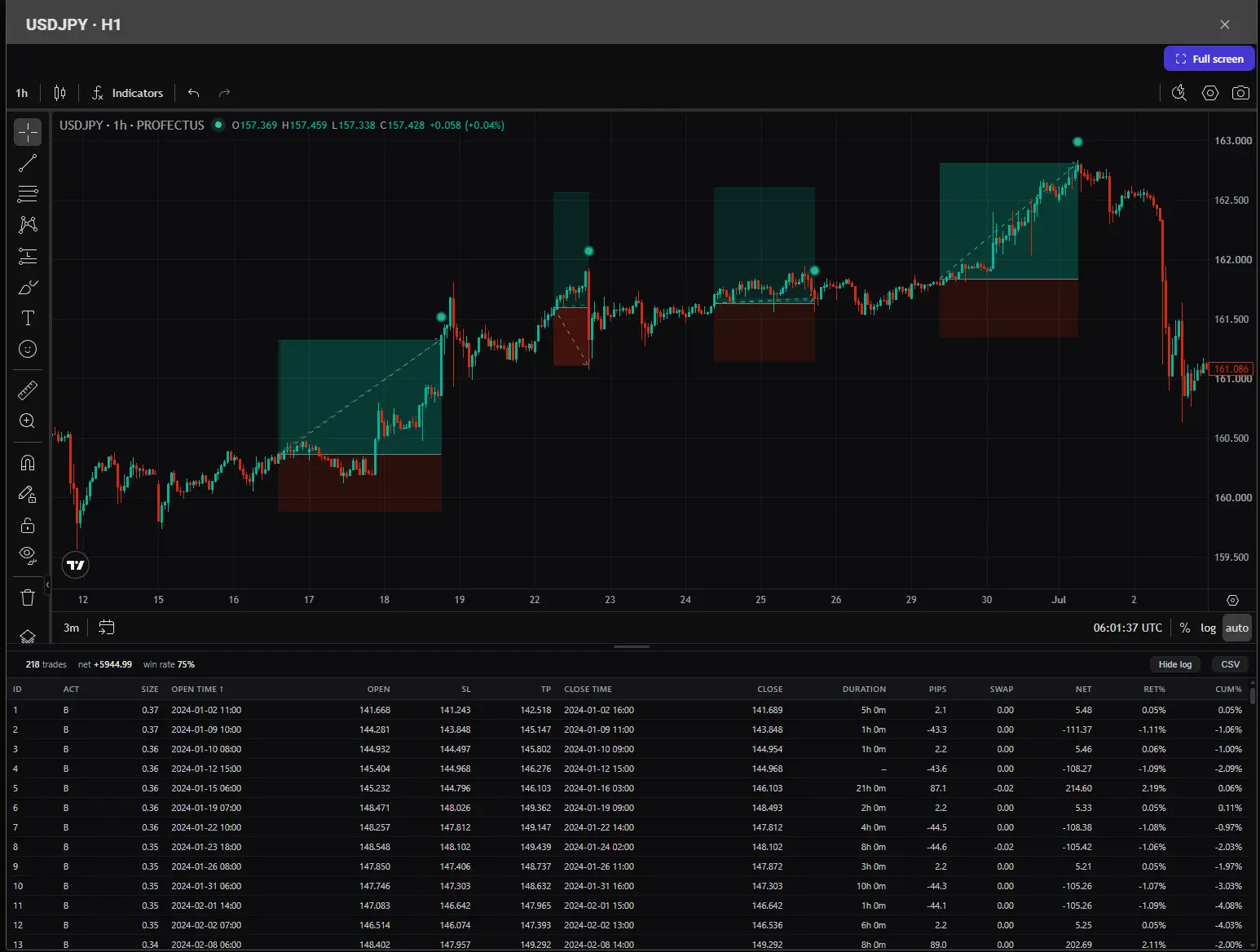
The backtesting charts in Profectus give you a great overview of what the strategy actually looks like, instead of guessing from the trade statistics only. While the statistics matter, seeing the trades play out on the chart gives you a great idea of what the strategy is doing.
You can also open the complete backtest report to analyze the equity curve, yearly returns, trade distribution, and drawdown. For prop firm traders, the prop firm analysis of the backtest report is super valuable to get an idea of the chances of passing a challenge.
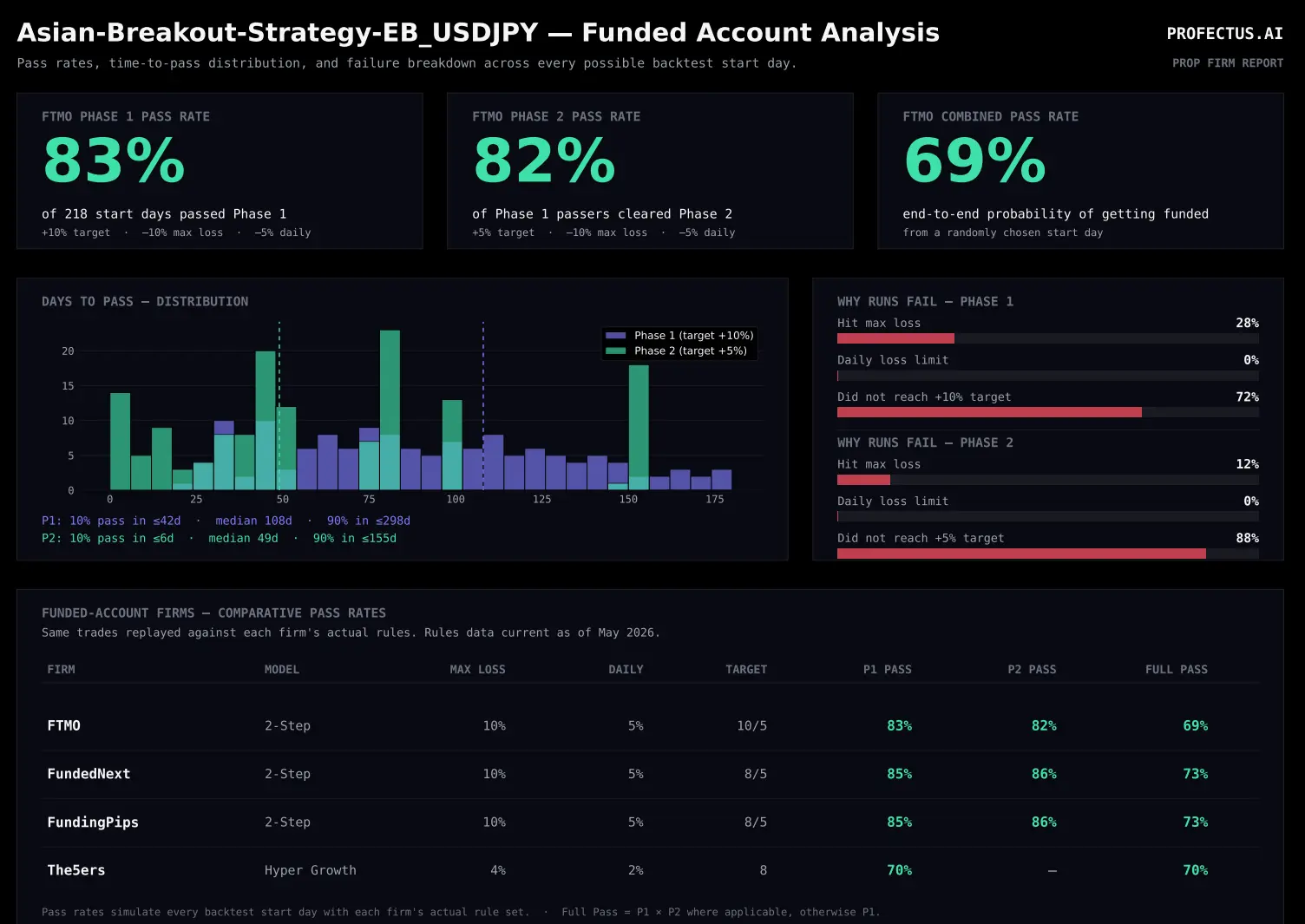
Of course, a backtest doesn't guarantee that a strategy will perform the same way in the future. But it gives you a much better starting point than running an algorithm without knowing how it behaved historically.
This is also where you should think about your trading account rules. For example, many prop firms have specific restrictions around high-impact economic news or restrict weekend holding. If your prop firm does not allow opening trades around an NFP release or interest rate decision, your algorithm needs to respect those rules as well.
In Profectus AI, you can use the News Filter block to prevent trades from being opened around specific economic events. You can also use other conditions to control session times, trading days, and risk management. The exact settings should match the requirements of the prop firm you intend to use.
Once you're happy with your strategy and have tested its behavior, it's time to export it.
Step 2: Download Your EA and Connect MetaTrader 5
When you press “Download” in the upper toolbar in Profectus AI, you get the .EX5 file for your strategy. Next, install MetaTrader 5. Most brokers and prop firms that support MT5 provide a download link in the client portal. In the video, I'm using FTMO as an example, but the general process is similar for other MT5-supported brokers and prop firms.
After installing MT5, log in using the trading account credentials you received from your broker or prop firm.
Now it’s time to activate the EA in MT5. Let’s go through the steps:
- Open MT5. Double-click the .EX5 file you downloaded from Profectus AI. This will open your MT5 terminal and will automatically place the EA in the right folder.
- Locate your Expert Advisor. When you double-click the .EX5 file, it should place the EA in the Expert Advisors folder of your MT5. Open the Navigator panel in MT5 and find the name of your EA under the Expert Advisors section. If it isn't visible, check the MQL5/Experts folder inside MetaTrader's data directory and refresh the Navigator
- Attach the EA to your chart. Let’s follow the example of the video and use USDJPY. Find USDJPY in the symbols list, right-click, and press Open Chart. In the toolbar, change the timeframe to 1H. Drag your Expert Advisor from the Navigator onto the USD/JPY chart. This opens the strategy settings, where you can review and adjust any inputs you created inside Profectus AI.
- Enable algorithmic trading. Allow algorithmic trading for the Expert Advisor and make sure the main Algo Trading setting in MetaTrader 5 is enabled. After confirming the settings, check that the EA has initialized correctly and is active on the chart.

Step 3: How to Keep Your EA Running 24/7 With a VPS
This one might be a bit difficult to understand at first, but I assure you that it’s an easy fix. Your EA will only run if MT5 is running. That means that your PC or Laptop would need to be on and active (not off or on standby) 24/7. If you run your EA on MT5 on your laptop and then turn that laptop off, the EA stops working.
That is obviously not what we want from automated trading. The whole reason we automate our strategies is that we don't want to sit behind our charts all day waiting for trading opportunities. That includes being able to close our computers when we want to.
The solution is a VPS, or Virtual Private Server.
A VPS is essentially a remote computer that stays online independently of your personal laptop or desktop. You can install MT5 on that server, connect your trading account, and run your Expert Advisors continuously. This computer is virtual and is located somewhere in a data center.
There are 2 ways of doing this.
The MT5 VPS.
The first is using the virtual hosting service available in MT5 itself. After creating an MQL5 community account, you can access the virtual hosting options in the platform. This allows you to migrate your trading account and MT5 settings to a hosted service, where your EAs can continue running without your own computer staying online.
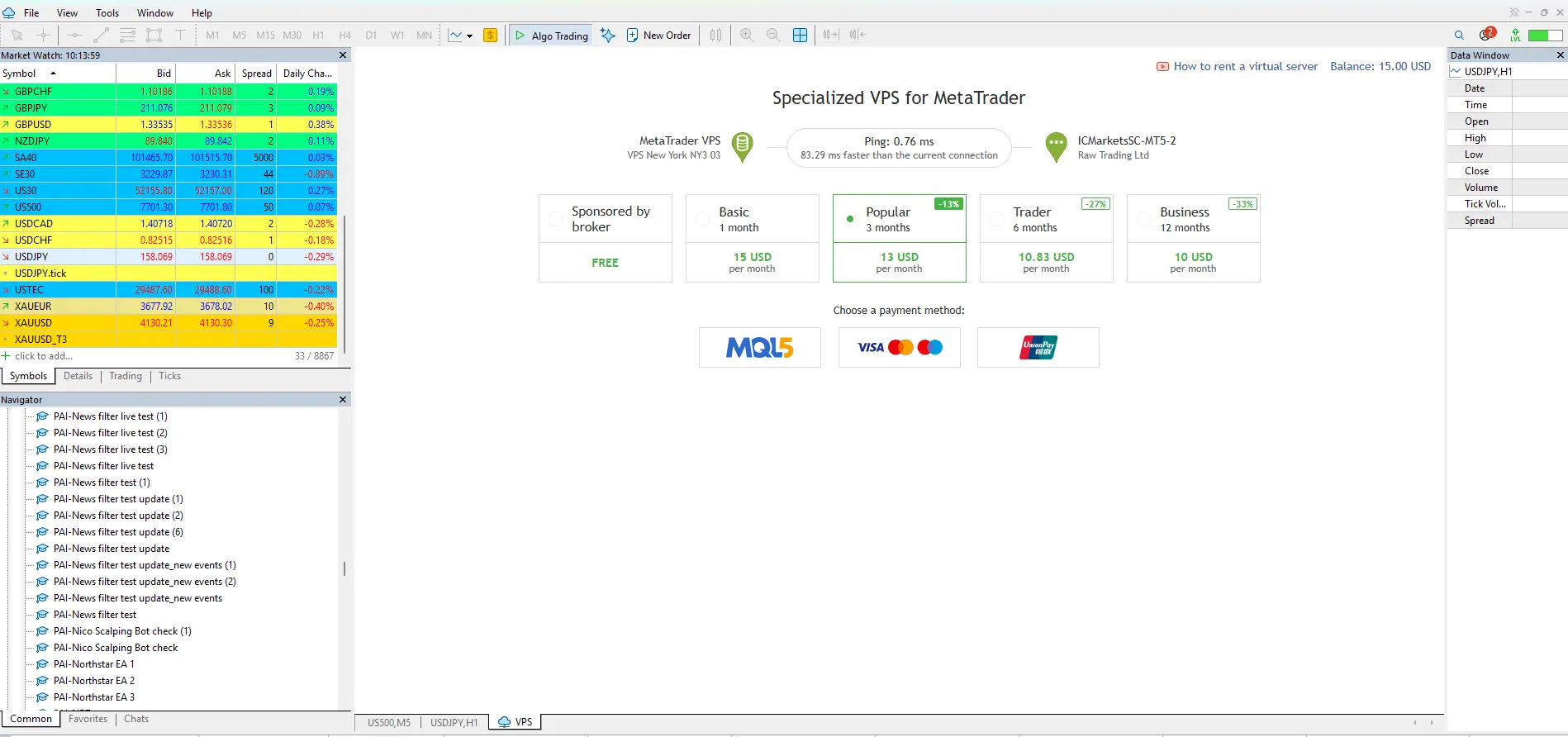
This is by far the easiest way to run your EAs on a VPS. You can click the VPS button in the bottom-right corner of your MT5, and this window will open. You select a plan, and you are prompted to another window where you can simply choose what you want to migrate to the VPS. You can choose between 3 options; I personally choose Migrate Everything. There is only 1 button that says “Migrate”, and your EAs are now running on the MT5-hosted VPS.
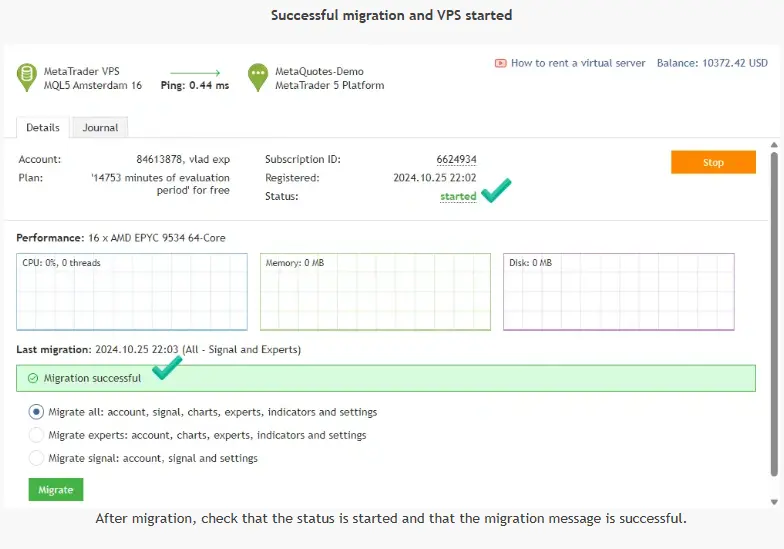
You can check the journal for what is happening with your EA through this interface (the VPS interface in MT5) and you will see all the activity on the MT5 account like you normally would.
This is the easiest option to get started with a VPS as it doesn’t require a third-party setup.
The third-party VPS
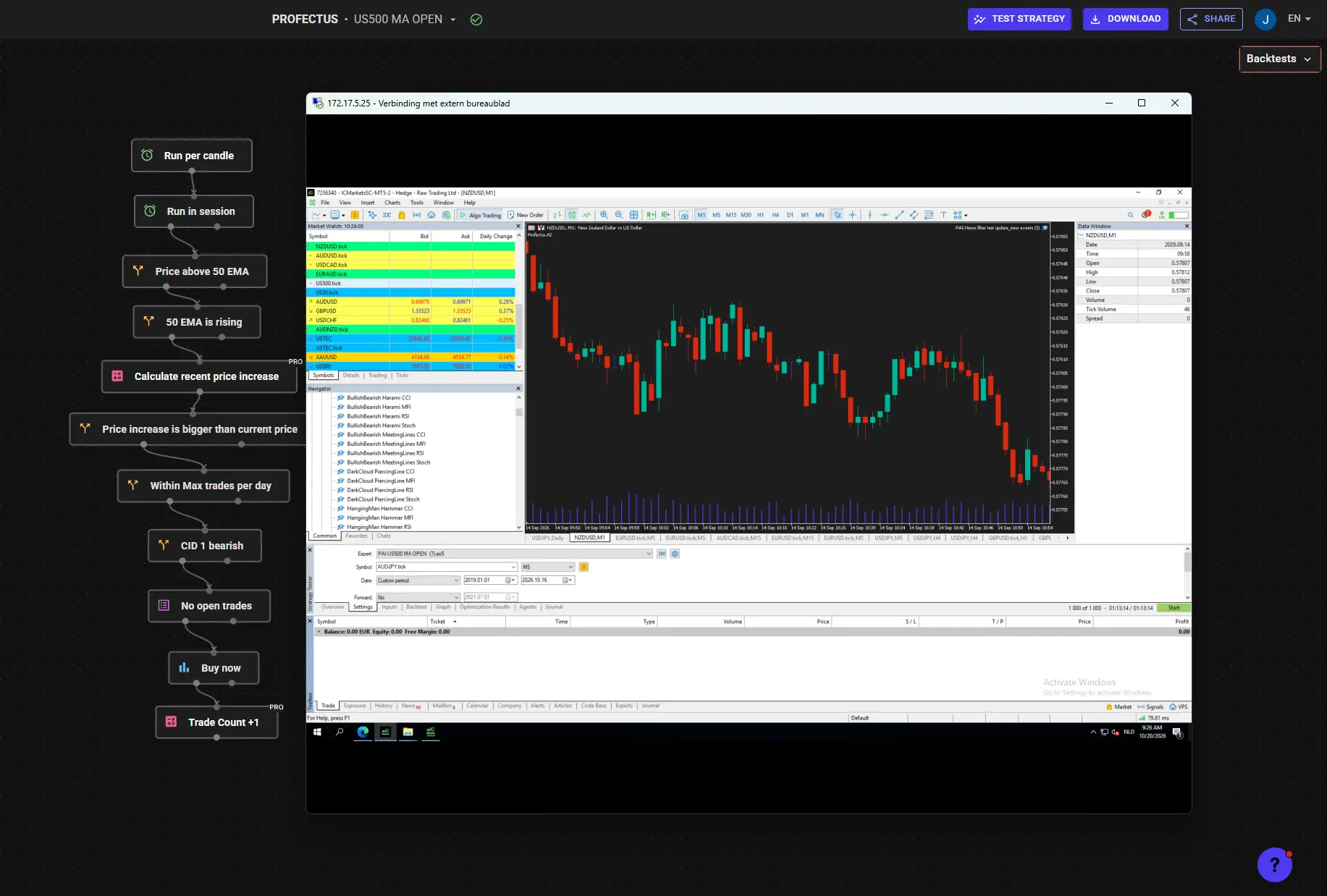
The second option is renting a VPS from an external hosting provider. This gives you access to a remote Windows environment where you can install MT5 yourself, manage multiple terminals, and configure your trading infrastructure. The steps for running the EA are the same as above; you just don’t have to go through the VPS steps in MT5. When the EA is running on the VPS, you can just close the connection to the VPS, and it will continue to run in the cloud.
That can be more useful when you have several trading accounts, multiple EAs, or need a heavier infrastructure.
Running an EA on a Prop Firm Account
Now that we understand the technical setup, let's look at the prop firm side of things.
A prop firm account is different from trading with your own capital. Many retail prop firms operate through evaluation challenges, where you must reach certain profit targets while respecting maximum drawdown and other trading restrictions. These restrictions can include not trading through news events or not holding positions over the weekend. Others may have additional restrictions on trading behavior or execution methods. These rules differ between firms and account types, so you should always check them before deploying an EA.
A News Filter can help prevent unwanted entries around scheduled economic events, while session filters and trade management blocks can help control when trades are opened and closed. But an automated filter does not automatically guarantee compliance with every prop firm rule.
This is why I recommend starting with a demo account. Once you've verified that the strategy is operating correctly, you have a much better foundation for using it on a prop firm account.
From Your First Trading Bot to an Automated Portfolio
Once you understand how to build, backtest, export, and run one automated strategy, you can repeat that process. You might start with one momentum strategy on USD/JPY and later add a breakout system on the S&P 500 or a mean-reversion strategy on another forex pair.
That is where algorithmic trading becomes particularly powerful. Instead of relying on one trading idea, you can build a portfolio of strategies that look for different opportunities across different market conditions.
Of course, adding more algorithms does not automatically make your portfolio better. Every strategy needs to be tested individually, and you also need to understand how the combined strategies affect overall drawdown and risk.
But once the technical setup is in place, the possibilities become much broader.
Get Started With Your First Automated Trading Strategy
If you're completely new to algorithmic trading, the easiest way to get started is to build or open a strategy in Profectus AI and test it on historical data. From there, you can open a demo account, install the EA, and see how it behaves in real market conditions. Once you're comfortable with the process, you can explore running the strategy on a VPS or adapting it to the specific requirements of a prop firm account.
The most important thing is to start with a strategy you understand, test it properly, and make sure the entire setup works before putting real money or a paid trading challenge at risk. Once that foundation is in place, running automated trading strategies becomes a much more manageable process.
Other related blog posts
Dive into a world of knowledge, trends, and industry updates on the Variable blog. Our curated content covers a spectrum of topics.
.webp)